
1. Enabling AI Translations
AI translations must be enabled at the organisation level before they can be used.
To enable:
-
Go to Settings → AI
- Enable:
- Enable AI
-
Enable AI Job Translations
Once enabled, Servis is ready to translate job descriptions and site notes for any worker who has a preferred translation language set.
2. Setting a Field Worker’s Preferred Translation Language
Each field worker (mobile user) can have a preferred translation language. This determines the language for all automatically translated job descriptions and site notes.
To configure a user’s language:
- Go to Users
- Select the relevant mobile user
- Under Mobile user settings, choose a Preferred Translation Language
- Save your changes
After saving, Servis will ask whether you want to translate all of the user’s existing active jobs.
Translate Active Jobs Prompt
You will be prompted to choose:
- Yes → Immediately translates all active jobs currently assigned to the user
- No → Only future jobs, or jobs edited after this point, will be translated
This step helps you quickly bring existing jobs up to date in the worker’s preferred language.
3. How Translations Work
Once a user has a preferred language set, Servis automatically translates job descriptions and site notes when:
-
A new job is created for that user
-
An existing job is edited and saved
-
A job is reassigned to the user and saved
-
You choose to translate existing active jobs during the prompt
Each time a translation event occurs, Servis generates a fresh translated version to match the latest job content.
4. Viewing Translations in the Web App
When translations are available, the job description area will display language tabs. These allow administrators and office staff to:
-
View the default job description
-
Switch to the translated version by clicking on the language tab
-
Verify accuracy or make edits and regenerate the translation
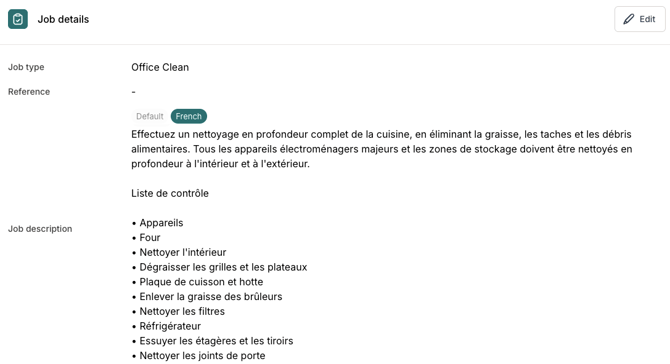
This ensures your office staff can quickly review how the translated version appears to field workers.
5. What Field Workers See in the Mobile App
Field workers interact with translations directly from the job screen in the mobile app.
They will see the job description and site notes in their preferred language, with an option to Show Original.
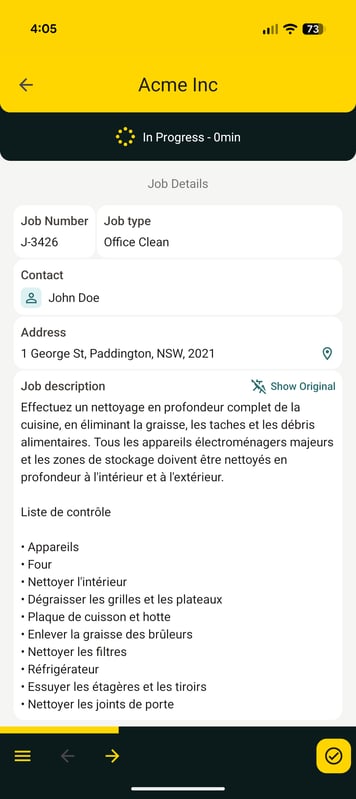
This toggle makes it easy for field workers to reference whichever version they understand best, improving clarity and reducing mistakes on site.
6. AI Usage Considerations
AI translations contribute to your organisation’s monthly AI usage. The following actions use AI credits:
-
Translating active jobs when prompted
-
Generating translations for new jobs
-
Re-translating jobs after edits
-
Translating site notes
Because translations regenerate when job content changes, frequent edits may result in increased AI usage.
You can view your historical translation activity in Settings → AI Settings → AI History.
7. Summary
AI Translations in Servis help multilingual field workers perform their tasks confidently and accurately by providing job instructions in a language they understand. Once AI translations are enabled and user language preferences are set, the system automatically handles translation in the background, keeping communication clear and consistent across your entire field workforce.